
In addition to editing the item list directly in the application, you can also work with Excel. To do this, export the item list from the application and save it on your computer. You can then enter your prices in the Excel file and upload the edited file back into your quotation.
This method is particularly recommended for larger and well-structured item lists, as working in Excel allows for quick and clear price entry.
You can find out how the export, editing in Excel, and the subsequent upload work in this help article.
Once you are editing your quotation for a request (you can find out how to get there here:
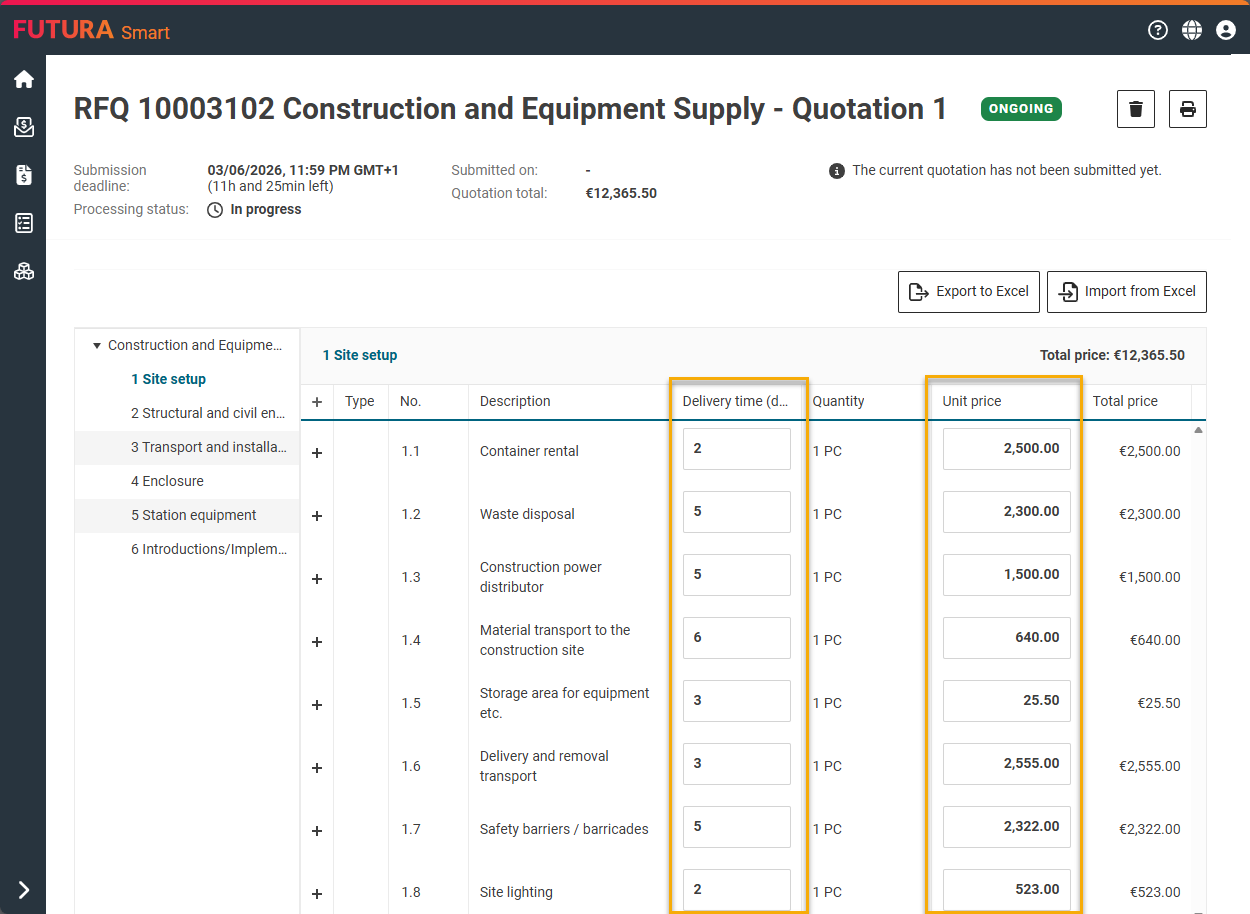
5 simple steps to create and send a quotation), the Export to Excel button is available above the item list.
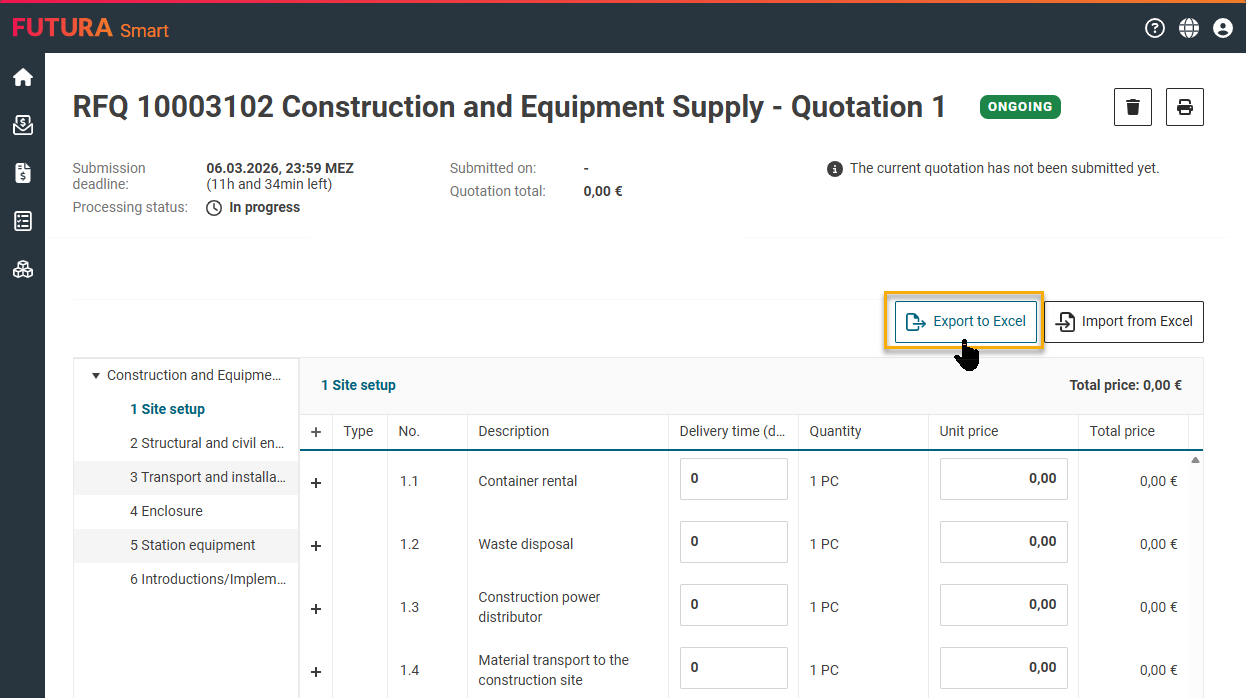
Depending on your browser settings, the file is either saved directly as a download or opened in a new tab in your browser. In this case, you can download a copy from the displayed online version in order to edit the file locally.
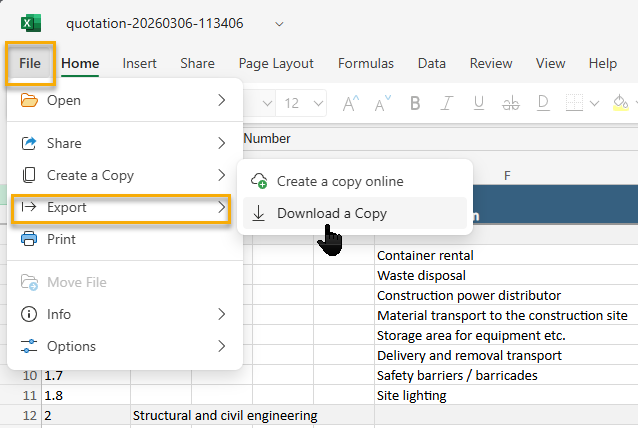
If no other settings have been configured, you will find the downloaded file in your local Downloads folder.
Open the file and enter your information in columns J and N. In these columns you specify the delivery time (days) and the Unit Prices.

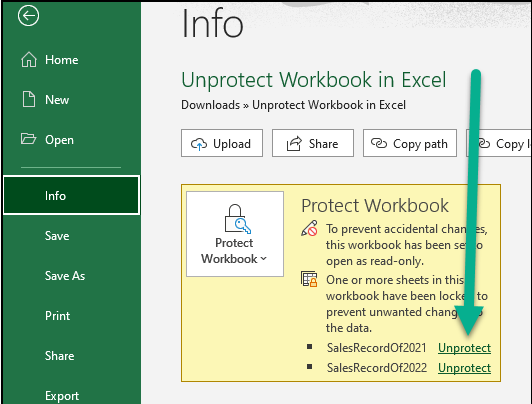
The file is created with protection enabled by default. You can remove this protection in Excel by clicking “File” → “Info” → “Unprotect”. Afterwards, you can edit all protected fields or, for example, view the full long text of the item lines.
Once you have entered your information, save the file locally on your computer.
When importing the file into FUTURA Smart, only the values in columns J and N (delivery time in days and unit prices) are taken into account.
Then import the file into your quotation using the Import from Excel button.
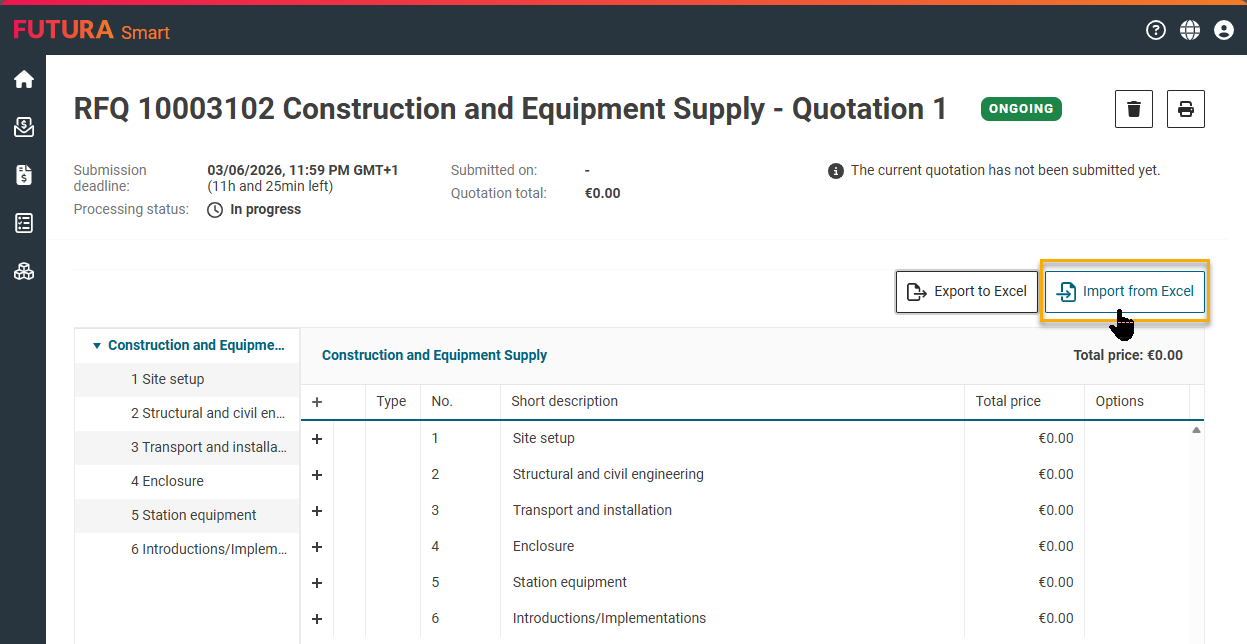
After a successful import, a confirmation message will appear and the data will be visible in the online item list.
In the following article you will learn how to finally send your quotation to the purchaser:
Step 5: Send quotation