
In addition to editing the item list directly in the application, you can also work with a GAEB file. To do so, download the bill of quantities from the application as a GAEB X83 file and edit it in your estimating software. Once pricing has been completed, export the priced quotation as a GAEB X84 file and import it back into the application.
This method is particularly suitable for companies that use GAEB-compatible estimating software and prefer to prepare their quotations in their familiar environment. The standardized GAEB exchange ensures a fast, compliant, and efficient quotation process.
This help article explains how to download the GAEB file, edit it in your estimating software, and import it back into the application.
Exporting the item list as a GAEB file
Once you are editing your quotation for an RFQ the button to export the item list as GAEB is available above the item list.
You can find out how to get there here: 5 simple steps to create and send a quotation)
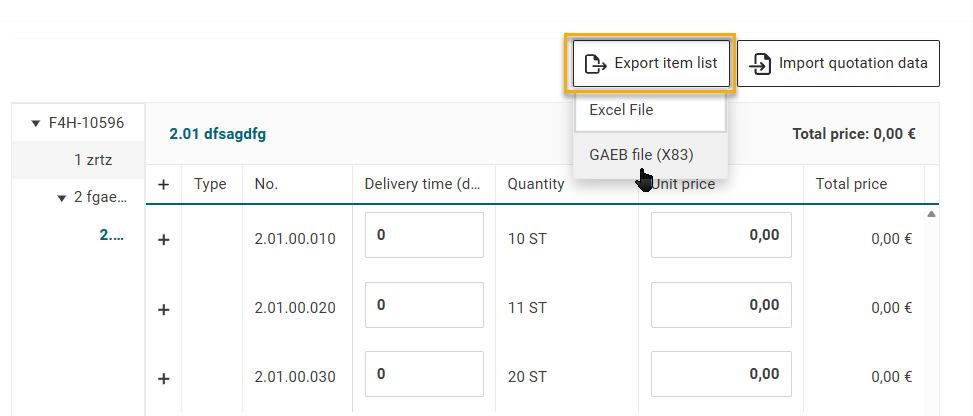
If no different settings have been configured, the downloaded file can usually be found in your local Downloads folder.
Import the GAEB X83 file into your GAEB-compatible estimating software and prepare your quotation there. Enter the required unit prices and, if necessary, add any other calculation-related information supported by your software.
After completing the pricing, export the priced bill of quantities from your estimating software as a GAEB X84 file and save it locally on your computer.
When importing the file into FUTURA Smart, prices are automatically assigned to the corresponding items based on the item number (Ordinal numbers from GAEB). Only prices are imported. Items, descriptions, quantities, and units from the original bill of quantities remain unchanged.
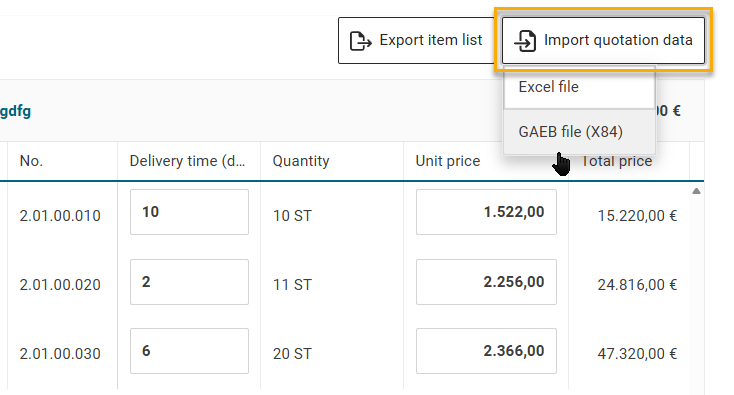
Finally, import the file into your quotation using the Import quotation data button.
In the following article, you can learn how to finally send your quotation to the purchaser:
Step 5: Send quotation